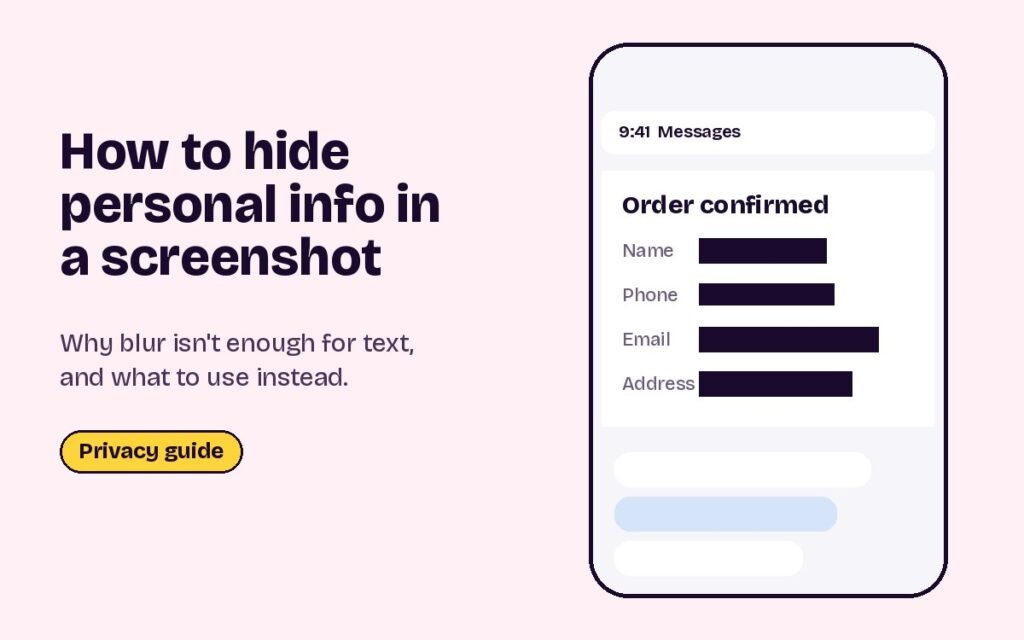
Short answer: to hide names, phone numbers, emails, addresses or order numbers in a screenshot, crop them out if you can, and otherwise cover them with a solid, fully opaque box. Don’t rely on blur or pixelation for text. Security researchers have shown that pixelated text can sometimes be reconstructed, and a light blur often stays readable. Every phone and computer has a built-in markup tool that can draw a solid box.
Below are the steps for iPhone, Android, Windows and Mac, a checklist of what to look for before sharing, and why solid boxes beat blur for text.
Why blur isn’t enough for text
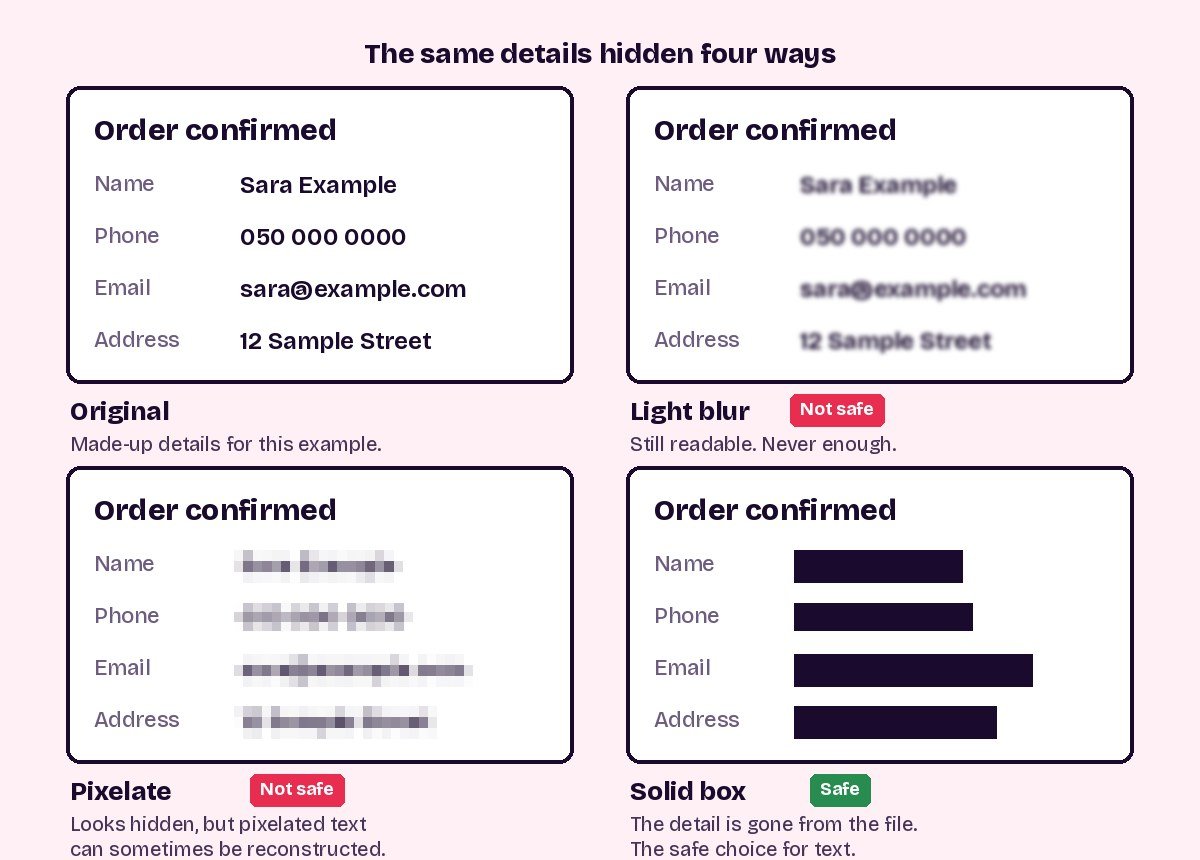
Faces and text are different problems. A blurred face loses the detail that makes it recognisable. Text is made of a small set of known letters in a known font, so even a heavily processed version leaves patterns that can be matched. In 2022, a researcher at the security firm Bishop Fox released a tool that recovered words from pixelated text, and his advice was simple: when you need to hide text, use black bars that cover all of it.
Blur and pixelate are fine for making a face anonymous in a casual photo. For anything written, such as account numbers, addresses or messages, use a solid box or crop.
Cropping is the safest option
If the private detail sits at the edge of the screenshot, such as the status bar, a notification or a chat list on the side, crop it away. Nothing is left behind and the screenshot looks cleaner. Every phone lets you crop straight from the screenshot preview or from the photo editor.
iPhone: Markup
- Open the screenshot Tap the preview right after taking it, or open it in Photos and tap Edit, then the Markup button.
- Add a shape Tap the plus button and choose the square.
- Make it solid With the shape selected, choose the filled style and a dark colour.
- Cover the text Drag the box over the detail and stretch it a little past each end. Add a box for each item.
- Save Tap Done and save to Photos.
Avoid the highlighter. It’s see-through, so the text underneath stays readable.
Android: the screenshot editor or Google Photos
- Open the editor Tap Edit on the screenshot preview, or open the screenshot in Google Photos and tap Edit, then Markup.
- Choose the pen and a dark colour Use the thickest pen, not the highlighter.
- Colour over the text Go over it several times until no part of any letter shows. On Samsung phones, the Gallery editor’s drawing tools work the same way.
- Save a copy Keep the original untouched in case you need it.
Pen strokes can leave gaps. Zoom in after saving and check that nothing shows between the lines.
Windows: Snipping Tool
Recent versions of the Windows 11 Snipping Tool include Text actions, which can hide text for you. Take a snip, click Text actions, then Quick redact to cover all email addresses and phone numbers automatically, or select any text and choose Redact text. If your version doesn’t have Text actions, use the pen at its thickest setting to colour over the text, or paste the screenshot into Paint and draw a filled rectangle.
Mac: Preview
Open the screenshot in Preview, click the Markup button, add a rectangle from the Shapes menu and set its fill to a solid colour. Drag it over the text, then save.
Any device: a browser tool
Our face blur tool has a brush and a Solid effect, so you can paint solid black over any text, as well as blur faces in the same screenshot. It runs in your browser, so the screenshot isn’t uploaded anywhere.
What to check before you share
- Names and profile pictures, including in chat headers, group lists and comments.
- Phone numbers, emails and addresses, including on delivery labels and receipts.
- Order, account, booking and tracking numbers.
- QR codes and barcodes. They can be scanned straight from a screenshot.
- The status bar and notifications, which can show other people’s messages.
- Browser tabs and addresses, which can reveal accounts or private links.
- Partial details. The last few digits plus a name can be enough. Cover the whole line.
For photos, rather than screenshots, check the location too. On iPhone, tap Options in the share sheet and turn off Location before sending. For faces in photos, see our guides for iPhone and Android.
Questions people ask
Is blurring text in a screenshot safe?
Not reliably. A light blur often stays readable, and pixelated text has been reconstructed by researchers. Use a solid box or crop the text out.
Can someone remove a black box from a screenshot?
Not if the box was drawn onto the image and saved. The text underneath is replaced in the file. The risk is with editable documents and PDFs, where a box can sit on top of text that’s still there.
What’s the quickest way to hide text on a phone?
Crop it out from the screenshot preview. If it’s in the middle, draw a filled box with Markup on iPhone or the thick pen on Android.
Does the highlighter hide text?
No. Highlighters are see-through, so the text stays readable underneath.
Sources
- BleepingComputer: Researcher reverses redaction, extracts words from pixelated image (Bishop Fox, February 2022)
- Pureinfotech: How to hide text in screenshots with Snipping Tool (Text actions and Quick redact)
- iGeeksBlog: Remove location data from iPhone photos (Options and Location in the share sheet)
Ready to try it? Make a grid that fits the new 3:4 profile in under a minute.
Open the grid maker