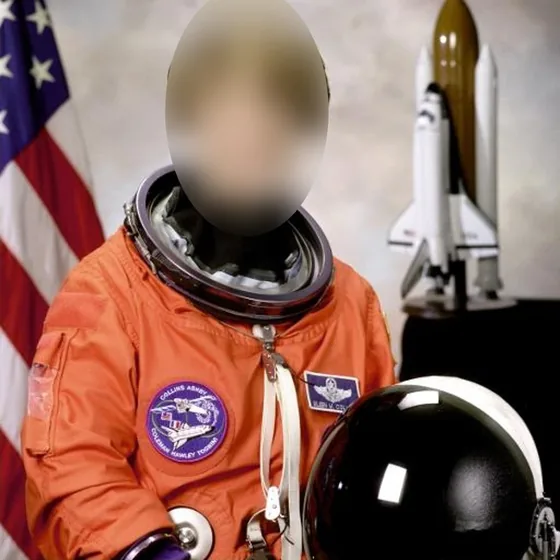

How to blur a face in a photo
This tool finds the faces in your photo and blurs them for you. You can unblur anyone you want to keep, paint over anything it missed, and save the result at full quality. It works on phones and computers, and it doesn’t need an app or an account.
- Upload your photo Tap Upload photo or drop the file onto the editor. JPG, PNG, WEBP and iPhone HEIC photos all work.
- Let it find the faces The face finder runs on your device and blurs every face it spots. The first time, it downloads a small model, which takes a few seconds.
- Choose who stays visible Tap a face to unblur it. Tap it again to blur it back. “Unblur all” and “Blur all faces” switch everyone at once.
- Fix anything it missed Pick the brush and paint over faces in the background, name tags, number plates or screens. The eraser removes blur you painted by mistake, and Undo steps back.
- Pick the effect and save Choose Blur, Pixelate or Solid, set the strength, then tap Download photo. You get a new copy and your original stays untouched.
Blur, pixelate or solid?
Blur looks the softest and suits family photos, school events and social posts. Pixelate turns the area into large squares, which reads clearly as hidden on purpose. Solid covers the area completely in black, which is the safest option when hiding someone really matters.
Light blur can sometimes be partly undone, especially on small faces. For anything sensitive, keep the strength high or use Solid. A strong setting removes the detail in the photo itself, so it can’t be recovered from the saved file.
Your photo stays on your device
Most online blur tools upload your photo to their server to find the faces. This one doesn’t. The face finder is downloaded to your browser and runs there, so the photo, and the faces in it, never leave your phone or computer. That matters when the people in the picture are children, clients or anyone who didn’t agree to be online.
Tips before you share a blurred photo
- Check the whole picture. Face finders can miss people who are turned away, partly hidden or very small. Look at the edges and the background before you save.
- Look beyond faces. Name badges, school logos, house numbers, number plates and screens can identify someone just as well as a face.
- Watch for reflections. Mirrors, windows and sunglasses often show a second, smaller face.
- Blur a little wider than the face. Hair and ears are recognisable too. The automatic blur already covers a bit more than the face, and you can add more with the brush.
- Share the new copy. The saved file is a new image. Make sure that’s the one you post or send, not the original.
How we test this tool
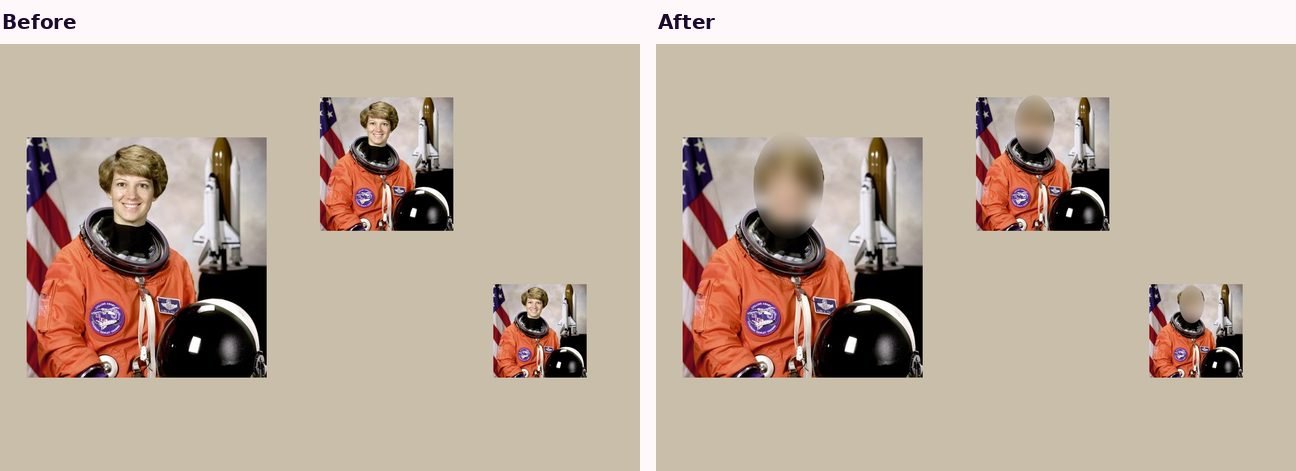
We test the face finder on group photos with faces of different sizes, check that each one is found and covered, and compare the saved file with the original to make sure nothing outside the blurred areas has changed. No face finder catches everything, so the tool always lets you add or remove blur by hand, and we remind you to check the photo before sharing. Our full process is on the how we test and write page.
Questions people ask
Is this face blur tool free?
Yes. There’s no sign-up, no watermark and no limit.
Is my photo uploaded?
No. Faces are found and blurred by your own browser. The photo never leaves your device.
How do I blur a face on iPhone?
Open this page in Safari, tap Upload photo and choose the picture from your library. The faces are blurred automatically. Tap Save to my phone, then Save Image to put the blurred copy in your Photos.
How do I blur a face on Android?
Open this page in Chrome, upload the photo from your gallery and tap Download photo when you’re happy with it. The blurred copy is saved to your Downloads folder and shows up in your gallery.
It didn’t find a face. What can I do?
Use the brush to paint over it. Faces that are very small, side-on or covered by hands or hats are the hardest to spot automatically.
Will the photo lose quality?
No. It’s saved at the same size as your original, with only the blurred areas changed. Very large photos over 16 megapixels are reduced slightly so they work on phones.
Written and tested by Profile Grid Maker. Last updated October 22, 2026. How we test